Tweets from Buoy 46085

It was somewhat unnerving.   I had just started reviewing my resources while preparing a unit on earthquakes for my Gr. 7/8 geography class, when the news hit of the earthquake in Chile.  Within an hour, educators I follow on Twitter such as @Larryferlazzo and  @cybraryman posted extensive lists of sites and lessons.  Others on #edchat began tweeting links containing news video, causes of earthquakes, and interactive sites.  The generosity of these educators was appreciated.  My resources were now “real-time” and much more relevant for my students.

Newly created communities were being formed through hashtags (#chile, #earthquake,  #terremotochile, #concepcion) as those in the affected areas tweeted updates on tremors, relief efforts, pictures and videos.  Sadly, they include requests for the missing.

Twitter is being used in places I’d never have imagined, such as a tsunami tracking device, posting tweets from 99 buoys spread across the Pacific Ocean.  Users can literally “follow” an individual buoy, located in the path of the reported tsunami.  These buoys send out tweets every 60 seconds.  Average swell heights of 2 to 3 feet were now being tweeted at 15 to 18 feet from buoys off the coast of Santa Maria, California; Kodiak Alaska; and 97 others.  My students will be astonished when I share this with them in class.

Social networking sites like Twitter bring the world into our homes and our classrooms.  Our students have access to learning that will provide an impact.  They have front-row seating.  As educators, let’s make sure we provide the tickets.

Growing my PLN with Twitter

Below is a discussion I posted in my brand new group Ning, Rm 21C.  Far from being an expert, my perspective is still that of a “newbie”, where I hope to encourage those who are considering the jump, to jump!

If you’ve arrived at this site, you’re likely sold on the value of collaborating with other educators. Twitter is a tool that can help you grow your own Personal Learning Network (PLN) by following educators who willingly share resources in an ongoing, global conversation about education and technology. Watch the video (2:23 min.) Twitter in Plain English.

Be patient. It takes time to grow your PLN on Twitter. Here’s a collection of good advice I follow:

Set up your profile. Click on setting, the top bar of your twitter page (URL, bio, picture and design). Post a link to your website and/or blog. Differentiate yourself.

  • Try to post, even once, daily. The more you post relevant answers to other people’s questions, and share resources, the more you’ll receive in return.
  • Don’t try to follow a lot of people at once. Read the bio of each tweeter and some of their recent tweets before following them. The more selective you are, the more you will get out of the experience.
  • Block any lurkers you are not comfortable with.

As with any social networking site, Twitter etiquette is important.

One of the most complex features of Twitter for new users to understand is the hashtag, a topic with a hash symbol (“#”) at the start to identify it. Twitter hashtags,like #edcat, help spread information on Twitter while also helping to organize it. Check out the various education hastags available.

I follow my tweets using TweetDeck on my computer and iPhone. It has the ability to show you everything you want to see at once, in an organized column format. It defaults with columns of @Replies and Direct Messages. TweetDeck also allows you to create your own columns, including education hashtags, and individuals you follow by clicking their name at the bottom of a tweet. My current TweetDeck columns consist of All Friends, #edchat, web20classroom, Mentions, Direct Messages, and Facebook: Full News Feed.

Check out Twitter4Teachers to find subject specific teachers and administrators you can follow on Twitter. Mashable has a Twitter guidebook which is quite useful as a reference point.

Initially I thought Twitter would be a drain on my time, but over time, I’ve come to appreciate the value of the community. I am supported by a like-minded group of educators who are generous, willing to take the time to share their resources and links.

Recently I’ve used Twitter in the classroom, loading my TweetDeck on the Smartboard for my students to view. The day after the earthquake in Haiti, someone in my PLN tweeted the names of Haitian journalists able to post on Twitter. My students were astonished as we read first-hand accounts from citizens in Port-au-Prince. My students were astonished and moved. My sons are tweeters. One is currently following @Astro_Nicholas, an American astronaut in space, while my other son is following @MediaOps, a British Army Major posted in Afghanistan.

With Twitter, you and your students will have instant access to information that would take you weeks to find, or that you might miss entirely. Twitter is an integral part of my PLN.

How have you experienced, or hope to experience, the value of Twitter?

@hdurnin

Peer Editing in the Clouds with Google Docs

EduCon 2.2 is a conference where education innovators meet to discuss the use of technology as a learning aid in schools.  The tweets posted by those in attendance, and the EduCon 2.2 philosophy,  mirrored the steps I was taking my students through as they  worked  towards posting their first major piece of writing on their wiki’s.   These principles are as follows:

  • Technology must serve pedagogy, not the other way around.
  • Technology must enable students to research, create, communicate and collaborate.
  • Learning can — and must — be networked.

Writing is hard work.  For some students, that is a concept they fight tooth and nail.  Their preferred process often looks something like this:  rushed thoughts scribbled onto a template, convert to full sentences, hand it in, done.   That’s why principle #1 is important.  Technology can support the pre-writing process of brainstorming, modeling, and graphic organizers that bring out higher level thinking and student achievement in writing.

In my classroom, once students have their graphic organizer completed, the “clouds” move in.  Google Apps is an example of “cloud computing”, a techie term used to describe distant servers that store data.  It’s a free online program, similar to Microsoft Office, which students can safely access from school and home.  The apps include word processing, spreadsheet, presentations (Power Point) and form (useful to make quizzes).   At the beginning of the year, each new student is set up with their own account, supplied by DDoc from the board’s Tech Team.  Their account is designed with a username based on the school and a number instead of their real name (e.g. turnstudent01).   Students who were in my gr. 7/8 class the previous year maintained their original account.  Using the word processing app (Google Docs), students type their first draft.   They get a kick out of the fact that they are writing “online”.  I know they are safe and no one other than me and their parents, can access their work.

Principle #2 focuses on communicating and collaboration.  In this example, that means peer editing.  Once the initial draft is complete, students “share” their doc with two other students for peer editing.  Using different coloured font, the peer editors type suggestions based on the rubric, a recent grammar lesson, or basically whatever needs to be added to help the” owner” of the document.   Peer editors can write at the same time as the owner to speed up the process.  Struggling writers who are linked with a stronger writer, get the chance to read some good examples before revising and editing their own.
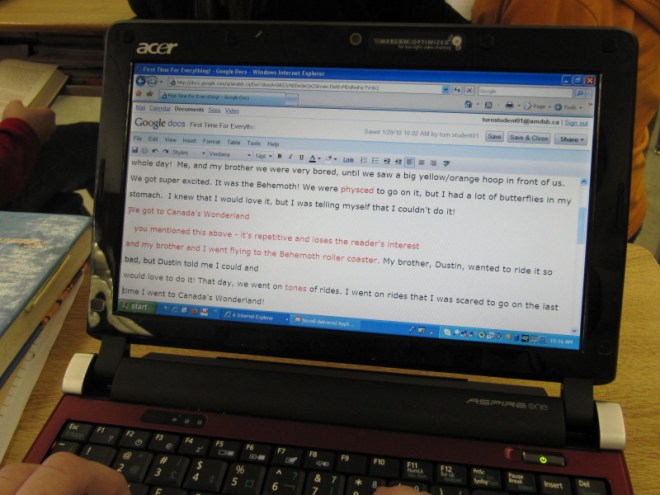
Effective peer editing takes time and comes with its own set of challenges.  Over the past two years, I’ve learned that peer editors using Google Docs need constant training.  We practice, practice, practice on how to constructively comment.  Surprisingly to some, inappropriate comments are not an issue, lack of constructive criticism is (perhaps not wanting to hurt someone’s feelings?).  So we practice some more, emphasizing the fact that you’re helping your peer when you give specific feedback so the owner can edit before I see it. “Great job” doesn’t cut it.  I’ve also learned this lesson needs constant reviewing.

Sometimes students don’t buy in. They couldn’t care less about another student’s writing.  They are not yet sold on the importance of developing  “communication and collaboration” skills.   As a result, I sometimes assess students on their own peer-editing skills. That usually convinces them buy in.

The peer-editing groups are changed each term. I align them based on strengths and struggles, ensuring strong and struggling students each receive some constructive peer feedback.  Sometimes students, no matter how clear you make it, will not follow a rubric. Having a peer comment on their work seems to help.  “You got to add..……to get a better mark.  You know Mrs. D will tell you the same thing”.

The beauty of networking with other students using Google Docs supports principle #3. After the owner has had two other students read and evaluate their work, they have time to make improvements before being graded.  Google Apps is accessible anywhere there’s internet, so students can, and do, work on their assignments from home.   Since I can view each student’s history, I see they are excited and engaged based on the times of day (and night!) they are working.

We are a small school in a rural area.  Not all students in my class have access to technology at home.  It’s important they are given numerous opportunities to become digitally literate.  Recently, when I ran into several of my grade 8 grads at their high school, they told me they continue to value and use Google Apps on their own.

Peer editing with Google Apps helps support my students with the writing process by creating a community where students support each other.   “Computing in the clouds” supports the writing process outside of school, since it’s accessible anywhere there’s an internet link.

When I first started using Google Apps with last year’s class, I wasn’t sure how things would go.  But we all learned together, modeling the three principles supported by Educon.  Students love the process and the benefits are clear.  After all, who wouldn’t want to spend their days writing in the clouds?

How to Introduce Twenty-Four Grade 7/8 Students to Their Own Wiki Site


Step 1:  Have faith in them.

Step 2:  Set up a page on your class wiki where they can click on their personal wiki link. This helps those students in particular, who chose a long, crazy name for their site. For example, http://ts37’sstupendouslywickedwiki….   Note to self: next year, no long, crazy names!

Step 3:  Give them time to explore, share, talk, move around, be amazed.  Take this time to fix password glitches and log-in issues.  Be sure to take a second to look around.  It’s like you hit a magic switch – they start writing, on their own, without a prompt!

Step 4:  Bring everyone back together to ask and answer questions, which helps to set the rules.  Ask them, “Why do you think we’re doing this?”  Metacognition skills surface.  They know.  “To show each other our work.”  “To learn about internet safety.”  “To show our parents what we’re doing.”  They realize the maturity level that’s expected of them, without a word from you.  They stop asking if they can add gaming links and wild videos. 

Step 5:  Show them the “how-to” page on the sidebar of your class wiki.  Tell them they can click here for instructions on adding pages and links to their own site.  Know however, that realistically, they’ll never use it; it’s more for you.  Kids click, click, and click again, until they figure it out on their own.  They will. 

Step 6:  Show them a great video with a message, such as Lost Generation.  Model how to embed it into a page.  They decide the video you showed is really cool and they proceed to embed that video with the powerful message into their own site.  It was their idea.    

Step 7:  Give them more time to play.  They forget they’re missing floor hockey in Phys. Ed.  They continue to write, on their own, WITHOUT SPELLING MISTAKES.  I am floored.  This writing has not even been peer-edited.  When I show my astonishment, they say, “Hey Mrs. D., someone’s going to see this!”  Make sure you close your mouth because believe me, your jaw will drop. 

Step 8:  Forget to eat lunch.  You are too busy complying with their requests to read their newly created pages.  Tell them to remind you on Monday of their great ideas, because there’s too many to remember right now.  Stop wondering if you’ll come up with enough creative projects for them to post on their site.  Tell the struggling grade 7 writer, with the “Caramel Sundaes” page, to show her idea to the class on Monday. 
“What’s the title mean?” I asked. 
“It’s going to be a weekly summary of all the good things that happened to me each week.” 
“Neat, but why the title?” I ask. 
“Because all good things seem to happen on Sundays, ” was the reply.  Cool. 

Step 8, Part B:  Prepare to meet a personal side of your students you’ve never seen before.

End of Day 1.            Repeat Step 1:  Have faith in your students. 

Thanks DDoc!

Podcasting and Pajamas in the Classroom: Best Day of my Teaching Career

     The title bears repeating.  Today was the best day of my teaching career.  Not only was it pajama day, and a Friday, but it was a day where all my students were engaged for the entire day at a level I’d not seen, producing work that showed the critical thinking I knew they were capable of.  They were happy and excited.  I don’t ever want to forget the feeling of today. 

     What made it so great?  Planning, technology, an awesome colleague and students’ respect for each other.  It had been a tough slog back to school.  Two weeks off over Christmas for some of my students was too long, and getting them to focus at the level they’d left in December was frustrating me.  I pulled out the good stuff – a read aloud about a cranky old (according to the main character, “over 40”) teacher who, to their delight,  died.  “Write a description about one of the characters you met today.  You’re making it into a podcast on Friday.”  The lure of a new twist was the ticket I needed.   Peer-editing and oral practicing were completed without complaint. 

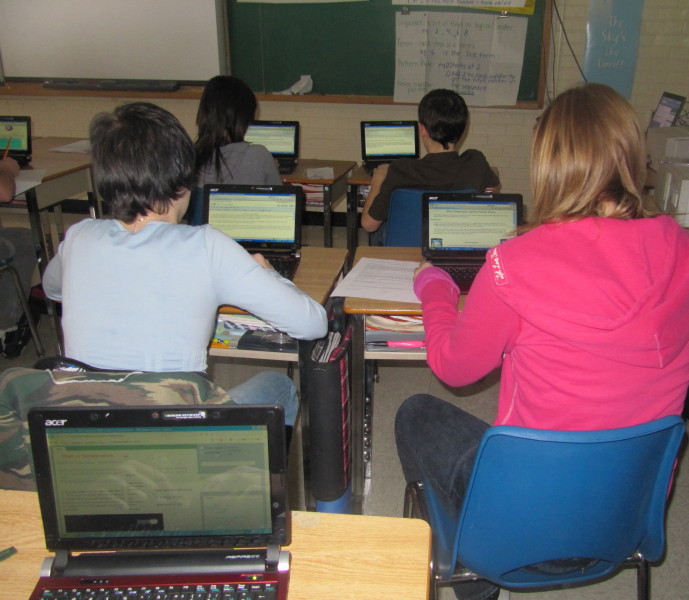
     I had tried podcasting last year, and it was a struggle.  Students were stationed at computers in our school computer lab, which is divided into two rooms.  This resulted in a teacher (me) running in and out of the rooms in order to help students.  The two-room setup also limited the amount of sharing of ideas between students.  This year however, our school is fortunate to have a class set of mini-computers, plus a Smartboard in my room.  Heaven!  However, the mini’s also came with their set of challenges.  The night before the lesson, our French teacher, Mlle. R., sat with me as I made sure Audacity worked on one of the mini’s.  No go.  They still needed lame encoder downloaded on all twenty-four.  Mlle. R. is a star!  This morning, with tag-team military precision, she helped me download and test the required program onto each mini.  Students entered class, logged onto their mini’s, and we were away.  Smooth sailing.  As I demonstrated the process on the Smartboard, (in my pj’s) students followed along.  They were able to learn from each other as students called out suggested shortcuts they discovered along the way.  In addition, Mlle. R. had agreed to come into my room and help the students, instead of teaching them in her French class.  It made sense, since she would be moving my students onto French podcasts.  Having two teachers in on the training session, even for a short period of time, helped immensely.  The resulting first effort showed a side of some students I’d struggled to reach all year.  So while these productions were small, students were off to a good start.  They connected, predicted, summarized and articulated their thoughts in a way that pen and paper had not produced.  Cloud nine!  Listen to students’ podcasts.  Their resulting comments on our wiki Wallwisher illustrate their engagement.

     The afternoon brought similar success.  The project:  produce a Bitstripsforschools cartoon demonstrating the Particle Theory of Matter.  Students had their previously created planning templates ready.  Heady stuff for any day, but a Friday afternoon?  What was I thinking?  But picture twenty-four students, one hour before the weekend, hunched over, glued to their computers as they enthusiastically created a comic demonstrating a scientific theory.  I stood back, admiring how they shared with each other, as they linked science and art.

     I’m excited for the projects we’ll be moving into.  Voicethread is the next introductory training program I’m planning.  And yes, Mlle. R. and I will work together for part of that session so students learn the ropes. 

     Yes, today was the best day of my teaching career.    

2010/365 photos and Blogging with your iPhone

Today many of us joined the 2010/365photos project.  With that commitment made, I wanted to find a fast, efficient way to upload photos to my blog, using my iPhone (see the link under Blogroll).  Read on if you’re trying to do the same.  It’s so easy!  Install Flickit and Flickr (free apps) on your iPhone.  You can also install Photoshop, another free app, to edit pics before you upload. 

In Flickr, set up your blog under “Your Accounts”, “Add a Blog”.  Flickr walks you through each step.  Watch for the extension you need to add if you’re a WordPress user.  I missed this the first time (still sleepy from New Year’s Eve?). You can add as many blogs as you want. 

Now you’re ready to go.  Back in Flickit, upload a photo from your library or a photo you’ve just taken.  After you’ve selected your picture, tap it for the details menu.  Scroll to the bottom, where you will see the link to your blog.  Tap, and voila, you’re done.  So tomorrow, when I take my daily shot, I open Flickit, find the pic, tap it, tap my blog name, done!  Only 364 more to go…..

Day 1: 90 yr. old Bert fiddlin’ with his teenage buddies. 

Be Kind, Please Rewind: Creativity and Finding a Place for Teaching Internet Safety

In our jam-packed curriculum, where I teach all subjects, except French, in a Grade 7/8 class, I struggle to fit in the thousand plus expectations we are to address. So, as good teachers are to do, I take the “integrate, cross-curricular” approach as much as possible. It’s still an impossible task. However, my participation in the Powerful Learning Practices: Leadership in Schools project has brought focus onto an area where I have been lax. I know, we’re suppose to be kind to ourselves, not beat ourselves up about what we haven’t done right, as we grow professionally.

Yes, I have grown!  I’ve learned a new language full of new vocabulary such as social networking, PLN, and retweets, all in an effort to increase my digital footprint. I have shared this growth process with my students (Gr. 7/8 students always want to know what you’ve been doing when you’re away). But… gulp…. in doing so, I’ve come to the conclusion that I’ve done a lousy job teaching them about online safety. I mean, they know this stuff – don’t they? They text, email, chat, share on Gdocs, Facebook and recently, tweet. They are tech-savvy. But this week, as I shared my digital growth stories with them, their facial expressions (shock’n awe) showed they are naïve when it comes to the shape and size of their own digital footprint – footprints that are showing up where they don’t want them seen.

This week, as they sat at their desks with their notebook computers, I googled myself on the Smartboard and showed them the various results that popped up, including my recent twitter comments. Then I had them do the same to themselves and people they know. The room erupted. Following the many, “OMG’s”, the discussion turned to story sharing ranging from a friend’s sister who didn’t get a job because of pictures found online, to the benefits of Facebook for planning grade 8 grad. So, as the saying goes, (funny… it relates to old technology), “be kind, please rewind”. I am going to do just that. After the Christmas break, in addition to the already packed term two, with its mandatory PLC writing, math units, book clubs, etc., I am going to slow down and back up. Using the somewhat creative approach, I’ll link my online safety lessons to the Personal Safety and Injury strand in Health. After all, what could be more important right now, as we focus on 21st Century Learning, than our students’ online personal safety?

Text Versus Handwriting? Don’t Forget Grandma’s Christmas Card.

Recently, in the Ontario PLP forums, the question was raised whether or not handwriting is dead.  As a teacher who admits to having terrible penmanship, I embrace the opportunity my students have to type any and all assignments.  But as I posted these words in the forum, I felt guilty for some reason, thinking of the last piece of written material I have from my grandmother.  It’s a 15 year old Christmas card that I keep in my bedside table.  At the time, I couldn’t really understand why I felt this guilt.  Last night, I got my answer. 

This weekend, two different schools of thought appeared in the Toronto Star and the Globe and Mail newspapers on the issue of students texting versus handwriting.  The Globe & Mail’s Erin Andressons, reported on the improvement in spelling and essay length from students who text, based on a Stanford University study.  (Text appeal, GR8 news: We’re entering a new era of literacy.  http://www.theglobeandmail.com/news/technology/gr8-news-were-entering-a-new-era-of-literacy/article1397742/)  Best of all, for those of us who can’t stand to read a u, i or lol in an essay, the students know by university age to drop the text-speak in their essays.  Good news, right?

Interestingly, this weekend, the Toronto Star reporter, Andrea Gordon, posted a similar article but with a different slant and a very enlightening view!  (The Death of Handwriting.  http://www.parentcentral.ca/parent/education/schoolsandresources/article/736263–the-death-of-handwriting)   Her article starts off similarly enough with my favourite lines: “Kids can text in the dark. Their fingers fly over keyboards like Rachmaninoff at the piano. But give them a pen and most resort to printing. Asking them to write a thank-you note in cursive is the equivalent of handing them a slide ruler.”  However, she clears a new path as she refers to the work of Dr. Jason Barton, a neurologist and Canada Research Chair at the University of British Columbia. 

According to Dr. Barton, when we recognize someone’s handwriting, it’s like seeing their face.  His groundbreaking research points to the fact that while the left side of the brain decodes written language (text), it’s the right side that allows us to identify and connect with the writer, just like we would when we recognize someone’s face.  Instantly, we set off a series of sensory triggers which bring up emotions and connections to that person.  Texting does not to the same extent.  That’s exactly why I keep Grandma’s Christmas card.  Her right slanted, elderly penmanship takes me right back to being with her on the farm. 

Like me, the Star reporter has kept her Grandmother’s letters.  So while there’s still emotion transferred through texting, Andrea’s last line sums up what I felt uneasy about.  “We are more connected than ever before but it’s a connection that threatens to leave no trace.”  I will make sure I leave something written (neatly!) for my kids and grandchildren.

Why Blog?

I never saw a need to blog, nor really understood the why.  Reading another teacher’s blog is great when you need to learn something, but why post my thoughts?  Who would care?  But after becoming involved with the Ontario PLP community this fall, I am beginning to get it. These folks air their beefs, discuss what’s worked in the classroom and where they want to go next.  Makes sense!  My students and I have stumbled and conquered together on a number of cool projects.  So yes, reflecting and celebrating are good reasons to blog.  But for me, most importantly, I want to remember this journey, and with a memory like mine, that means writing it all down and… well….blogging.   So now I get it.   Blogging for me is my permanent travel log as I paddle through these somewhat murky and sometimes clear waters.

Paddling with my son, Dunlop Lake/09